
POC: Integrating Google Gemini into the Now Assist Panel
(or OpenAI...or Claude...or Copilot, etc)

If you’ve been experimenting with Now Assist and AI Agents in ServiceNow, you’ve probably had this thought at least once:
“This is cool… but how flexible is it, really?”
Maybe you want to experiment with Google Gemini. Maybe you want provider flexibility. Or maybe you’re just curious whether Now Assist can work with any AI.
Good news: it can — and you don’t need custom plugins, black magic, or a deeply nested Script Include hierarchy to do it.
In this post, we’ll walk through a clean, platform-native way to integrate Google Gemini into the Now Assist panel using:
Outbound REST Messages
A reusable Flow Action
A custom Now Assist skill
An AI Agent + agentic workflow
By the end, you’ll be able to type “Ask Gemini” into the Now Assist panel and get a live response from Google Gemini — without fighting the platform.
High-Level Architecture (Before We Touch Anything)
Here’s the flow we’re building:
User types "Ask Gemini" in Now Assist
        ↓
Agentic Workflow is triggered
        ↓
AI Agent is assigned
        ↓
Custom Now Assist Skill runs
        ↓
Flow Action executes
        ↓
REST Message calls Google Gemini
        ↓
Response appears in the Now Assist panel
Each layer has a single responsibility, which keeps things debuggable and future-proof. If you’ve ever had to untangle a “quick POC” six months later, you’ll appreciate this.
Step 1: Create the Google Gemini REST Message
Navigation:System Web Services > Outbound > REST Message
REST Message Details
Name:
Google GeminiEndpoint (Base URL):
https://generativelanguage.googleapis.com/
Authentication: None
HTTP Header:
Content-Type: application/json
Gemini uses an API key instead of OAuth, so we’ll pass that in as a parameter.
Step 2: Add a POST HTTP Method
Create a new HTTP method on the REST Message.
Method Name:
Generate ContentEndpoint:
https://generativelanguage.googleapis.com/v1/models/\({model}:generateContent?key=\){api_key}
- Request Body (Content):
{
  "contents": [
    {
      "parts": [
        {
          "text": "${prompt}"
        }
      ]
    }
  ]
}
This structure matches Gemini’s API contract and keeps the prompt fully dynamic.
Define the following Variable Substitutions on the HTTP Method:
| Name | Type | Purpose |
|---|---|---|
model |
String | Google Gemini model to use |
api_key |
String | Google Gemini API key |
prompt |
String | Text sent to Gemini |
Step 3: Securely Store the API Key
Create a system property:
x_company_prefix.gemini.api_key
Never hardcode API keys in scripts.
Future you — and your security team — will appreciate this decision.
Step 4: Create a Flow Action to Call Gemini
Instead of calling the REST Message directly from a script, we’ll wrap it in a Flow Action. This gives us a clean interface that AI Agents and Now Assist skills can safely use.
Create the Action
Navigation:Flow Designer > Actions
Name:
Ask GeminiInputs:
prompt(String)model(String)
Outputs:
response(String)
Add a Script Step
(function execute(inputs, outputs) {

    var rm = new sn_ws.RESTMessageV2('Google Gemini', 'Generate Content');

    rm.setStringParameterNoEscape(
        'model',
        inputs.model
    );

    rm.setStringParameterNoEscape(
        'api_key',
        gs.getProperty('x_company_prefix.gemini.api_key')
    );

    rm.setStringParameterNoEscape(
        'prompt',
        inputs.prompt
    );

    var response = rm.execute();
    var status = response.getStatusCode();
    var body = response.getBody();

    if (status !== 200) {
        gs.error('Gemini request failed: ' + body);
        outputs.response = 'Gemini was unable to process the request.';
        return;
    }

    var parsed = JSON.parse(body);
    outputs.response =
        parsed?.candidates?.[0]?.content?.parts?.[0]?.text ||
        'No response returned from Gemini.';

})(inputs, outputs);
This Flow Action becomes a stable, reusable integration layer between Now Assist and Gemini.
Step 5: Create the Custom Now Assist Skill
Navigation:Now Assist Skill Kit > Home
Skill Name:
Ask GeminiSkill Type: Custom
Edit Prompt:
Input:
PromptPrompt:
User Input: {{prompt}}

Instruction: Take the User Input above and provide a direct response after running it through the "Google Gemini" REST Message tool you've been given.
Format the response as plain text only, using Markdown for readability (bolding and lists).
Do not use HTML tags, including line breaks (<br>).
Do not return the description of the skill itself, only the response output.
Do not include any metadata, JSON, or conversational filler in your output.
Add Tools:
Click the “+” button in the diagram to add a tool
Add a “Tool node”
Select “Flow Action” for Tool Type and then click “Configure tool”
Name:
askGeminiResource:
Ask GeminiTool Input Value:
{{prompt}}
This skill is the glue between the AI Agent and the platform logic.
Step 6: Activate the Now Assist Skill
Navigation:Now Assist Admin > Skills
Click on the category your skill is in and then find your skill in the “Available” tab. You can “Turn on” the skill from there.
Step 7: Configure the AI Agent
Create a new AI Agent.
Navigation:AI Agent Studio > Create and manage
Name:
Query GeminiAI Agent Description (example):
Enables users to access the Google Gemini REST Message by simply including the key phrase 'Ask Gemini' in their requests. Designed for users who need to retrieve information or perform actions via the Gemini service through Now Assist.AI Agent Role (example):
Monitors user prompts for the key phrase 'Ask Gemini' and acts as an intermediary to process these requests by invoking the Google Gemini REST Message via the Ask Gemini flow action. Delivers the obtained results directly back to the user, ensuring seamless integration between user intent and the external Gemini service.Instructions (example):
1. Analyze the user prompt for the presence of the key phrase 'Ask Gemini'.
2. If the key phrase 'Ask Gemini' is present, extract the relevant query or request from the user prompt.
3. Send the extracted query to the "Ask Gemini" skill.
4. Take the response from the skill and pull out ONLY the text, not any other meta data.
5. Return the cleaned content to the user.
Tool: Now Assist skill >
Ask GeminiName:
Ask GeminiTool Description:
This skill will use the Ask Gemini flow action to call the Google Gemini REST Message. It passes the user's prompt to the Gemini service and then returns Gemini's response.Execution Mode: Autonomous
Display Output: No
Step 8: Create the Agentic Workflow
Create an Agentic Workflow that will trigger when the user types “Ask Gemini” in the Now Assist panel.
Navigation:AI Agent Studio > Create and manage
Workflow Name:
Query GeminiWorkflow Description (example):
This workflow activates the Query Gemini AI Agent whenever a prompt in the Now Assist Panel includes the phrase 'Ask Gemini'. It is designed for users who want to leverage Gemini's capabilities contextually within their workflow.List of Steps (example):
This agentic workflow specializes in detecting and responding to prompts containing the phrase 'Ask Gemini' in the Now Assist Panel.
1. Monitor all prompts entered in the Now Assist Panel.
2. Identify if the phrase 'Ask Gemini' is present in the prompt.
3. Trigger the Query Gemini AI Agent when the condition is met.
4. Return the result from the AI Agent.
5. Ensure seamless integration and response from the Query Gemini AI Agent.
Add AI Agents:
Query Gemini
The description and list of steps define when agentic behavior should activate. No additional triggers are necessary when walking through the guided setup for the Agentic Workflow.
Under “Select channels and status”, make sure to mark the Now Assist panel as a channel through which the users can engage with the agent.
Testing the Prompt
Now we get to play! Open the Now Assist panel and write a prompt that includes the phrase “Ask Gemini”. Now Assist should kick off your Query Gemini agentic workflow and utilize the agent and skill we created for it.
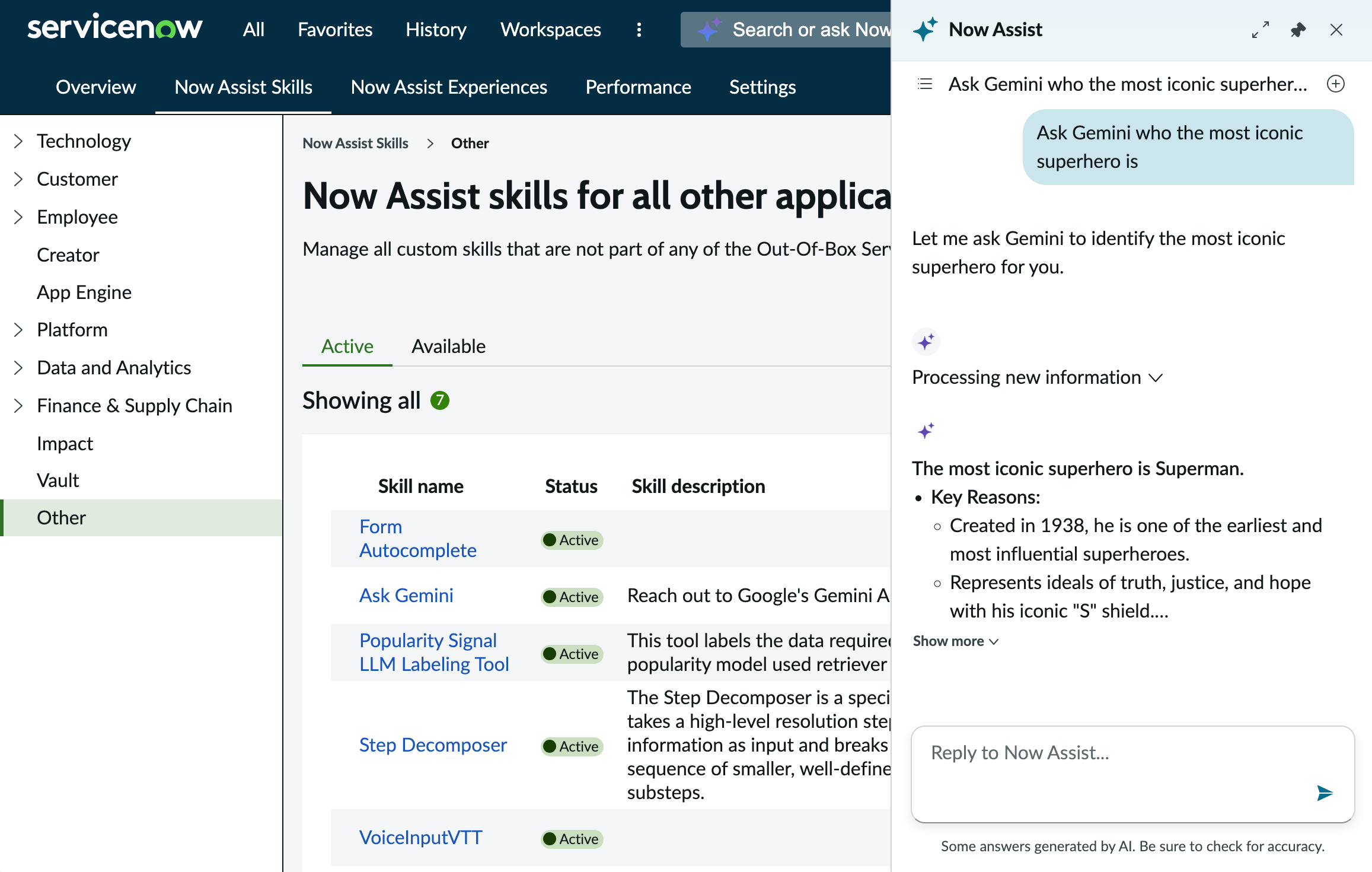
If nothing happens, confirm:
The skill is activated and assigned to the agent
The agent is assigned to the agentic workflow
The Now Assist panel has been enabled as a channel for the agentic workflow
Final Thoughts
Integrating Google Gemini into the Now Assist panel doesn’t require fighting ServiceNow — it just requires leaning into the tools the platform already gives you.
By combining REST Messages, Flow Actions, custom skills, and AI Agents, you get:
Clean separation of concerns
Easy debugging
A future-proof architecture
Fewer “how did we wire this?” moments later on
If nothing else, this proves one important thing:
Now Assist isn’t just powerful — it’s extensible.
If you want to explore guardrails, analytics, multi-model support, or agent tuning next, this setup will give you a solid foundation of Now Know-How to build upon.
Comments
Join the discussionNo comments yet. Be the first to comment.


